How to read CMS email
How To Configure an IMAP Client to Read/Send CMS Email
This document assumes that you're reading your username@cms.caltech.edu email, and you're using it as your primary communication channel for business related to the Institute.
By default, when CMS accounts are created, your email is forwarded to a destination address (usually your username@caltech.edu email address). However, for various reasons, some folks prefer to use their username@cms.caltech.edu address. While your user@caltech.edu address goes away when you leave the institute, your CMS email address can persist as a legacy forward.
If you are going to publish your user@caltech.edu email address as your primary address, you should use that in the Caltech directory and on any other documents that require an email address, and simply don't use or publish your user@cms.caltech.edu email.
We do not recommend relying upon mail forwards for normal mail delivery.
In the good ol' days, you could bounce email through several waypoints, forwarding email from one account to another.
With the increasing volumes of spam over the years, mail server administrators have been forced to take increasingly more steps to lock down email to prevent systems from being flooded with spam.
New antispam measures do sender-domain checks, Bayesian filters are triggered by "from" addresses not matching the sender address, and there are other countermeasures that make it more likely that legitimate mail will be flagged as spam somewhere along the delivery path.
If you forward CMS email to some other destination, it has to pass through not only our spam scanning service but the spam scanning service of whatever destination address you use, which means misplaced mail can be misplaced in two different spam fitlers, etc.
If you're using CMS infrastructure, we recommend a fully standards-compliant IMAP client.
The most common freeware version is Mozilla Thunderbird, so the directions below are for that email client.
With small alterations they should work with most email clients available on Windows, Mac, Linux, or on mobile devices such as Android, or an iPhone.
Step One
Download and install Thunderbird.
Make sure you get it from the Mozilla Foundation and not from another source, which may have adware installed.
Step Two
Run the Installer, and at the end of the installation process choose Launch Thunderbird now.
We used to include helpful screenshots to guide new users, but Mozilla has since completely redesigned the interface, and it is much less sustainable to re-capture screenshots for every version of Thunderbird, whenever Mozilla decides to revamp the UI.
Instead, here are the important bits that you need to know, to configure Thunderbird.
Your email address:
<user>@cms.caltech.edu, where<user>is the username you've been assigned.Your password: This is the password that is associated with your username (above) when your account was created, or changed recently by you.
Incoming mail server:
imap.cms.caltech.edu- Server port:
143 - SSL/TLS:
STARTTLS - Authentication:
Normal Password
- Server port:
Outgoing mail server:
mailhost.cms.caltech.edu- Server port:
587 - SSL/TLS:
STARTTLS - Authentication:
Normal Password
- Server port:
Step Three
After feeding the above information into Thunderbird, you may see a dialog window that appears to be similar to below:
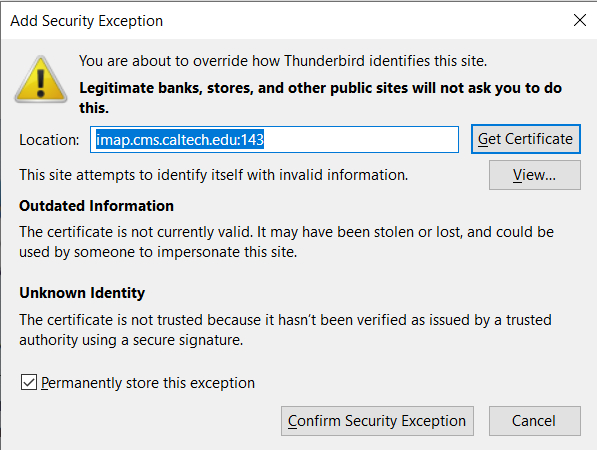
Not to worry!
This is a remnant from when Mozilla relied on well known commercial Certificate Authorities to provide a known identifyable Root CA. CMS does not have a Root CA, because we use certificates for free from Lets Encrypt.
You may safely view, and confirm the identity of the certificate, but you must check Permanently store this exception and then Confirm Security Exception to be able to read CMS email.
Webmail
Another choice is to forego the software and just use CMS Webmail. Here, most things are already configured for you already, as the mail server connections are pre-configured by default.