# Printer Configuration This documentation applies to the common area printers in Annenberg and Steele House. With some modifications, they will also work for most of the private or group printers in the building. All of the printers maintained by CMS have a wired connection to the Internet, and are accessible via IP address from any location on campus, both in and outside of the building, and on the wireless network. There are other ways to connect to the printers (for example, using the Bonjour service, or web services printing), but they may only work if you use the printer only when you're on the same network as the printer itself. Tech staff recommends using print via IP/hostname as detailed below so that you have a consistent expectation of use. As of this writing, the common area printers in Annenberg are all MF420 Series Canon Multifunction printers. The below instructions are for printing only, and do not include the advanced features of the printers (such as scan-to-email). The common area printers in Steele House only support printing. ## About printing in the department The budget for printing (both the purchase and replacment of the printers, and the ongoing cost of consumables) assumes that the general use case for printing in CMS is not to support "I like print copies of everything". If your printing needs require the routine consumption of a ream of paper a week (or even a month), you should be using either a personal or research group printer, and not the general-use printers included in the instructions below. You also should not use the printers as a substitute for using the department copier if you need several copies of a document (for example, if you're printing out copies of an assignment or examination for students). The price per page to produce a copy via the copier in 305 Annenberg is significantly less than the cost per page for maintaining the general use printers and while it doesn't seem like much if just one person is printing hundreds of pages routinely, it very quickly adds up. Just print one copy and use the copier to make the number of copies you need to distribute. Any administrative forms, internal communications, or other documents that are necessary to support the administrative functions of the department are fine to print to the general area printers, as are personal-related documents such as travel or short forms. But please do not use the general purpose printers to print paper copies of your entire 500 paper research paper library. ## Use The general use printers are for use by anyone in the department whose research group participates in the Recharge Center, the administrative staff, and any short or mid-term visitors to the department, regardless of their faculty/group affiliation(s). If your research group does not participate in the Recharge Center, you should be using a group printer for anything other than very occasional printing. If you're uncertain about your group, contact your group's administrative support person. ### List of printers | Printer | IP Address | Model/Make | Windows Driver | Mac Driver | Physical Location | | ------- | ---------- | ---------- | -------------- | ---------- | ----------------- | | [ann305](http://ann305.cms.caltech.edu) | 131.215.143.25 | Canon MF424 | [64 bit Windows 10 Driver](https://info-4.cms.caltech.edu/Main/Printer%20Configuration/Canon-MF424-Postscript-64.zip) | Use "Generic Postscript Driver" | Annenberg 3rd Floor Copy Room | | [ann206b](http://ann206b.cms.caltech.edu) | 131.215.142.33 | Canon MF424 | [64 bit Windows 10 Driver](https://info-4.cms.caltech.edu/Main/Printer%20Configuration/Canon-MF424-Postscript-64.zip) | Use "Generic Postscript Driver" | Annenberg 2nd Floor Hall, Northeast of Atrium | | [ann119](http://ann119.cms.caltech.edu) | 131.215.141.57 | Canon MF424 | [64 bit Windows 10 Driver](https://info-4.cms.caltech.edu/Main/Printer%20Configuration/Canon-MF424-Postscript-64.zip) | Use "Generic Postscript Driver" | Annenberg 1st Floor, Just Outside Kitchen | | [sh01](http://sh01.cms.caltech.edu) | 131.215.141.48 | Canon MF424 | [64 bit Windows 10 Driver](https://info-4.cms.caltech.edu/Main/Printer%20Configuration/Canon-MF424-Postscript-64.zip) | Use "Generic Postscript Driver" | Steele House First Floor (left of lobby) | | [tesla](http://tesla.cms.caltech.edu) | 131.215.141.134 | HP Laser Jet P3015 | | Use "Generic PCL Driver" | Steele House Second Floor Hall | | [rembrandt](http://rembrandt.cms.caltech.edu) | 131.214.143.86 | HP Color Laser Jet M452dn | | | Annenberg 3rd Floor, Maria Lopez's Office | ## Setup Instructions #### For Mac OSX Machines **Step 1**: Open the Printer Control Panel {{Figure |caption=Printer Control Panel |align=left |width=50% 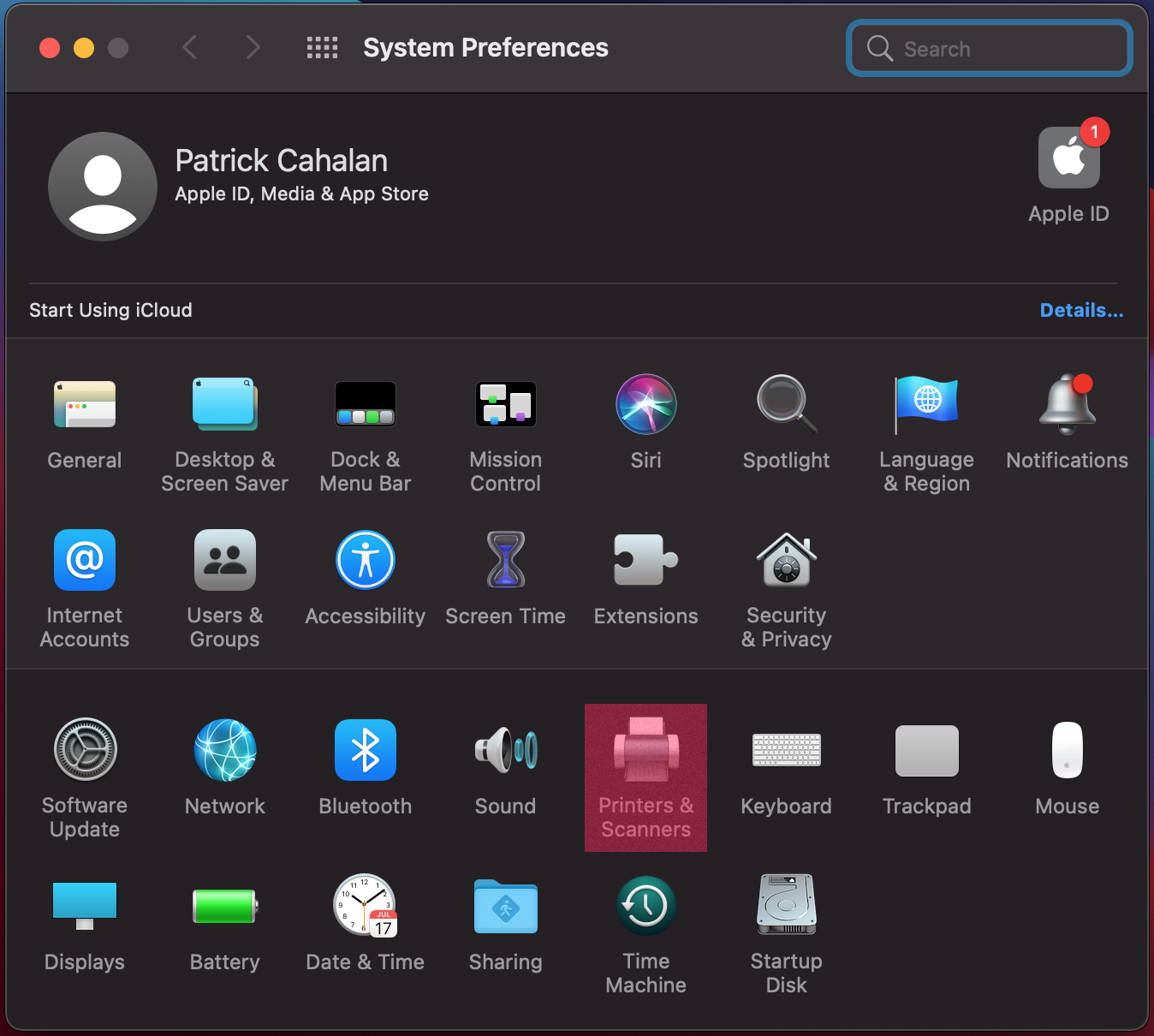 }} **Step 2**: Open up the **Printers control panel** on your Mac, and click on the IP option to add a printer by hostname or IP address. *Do NOT use the default Bonjour option* as the printer will not be accessible via Bonjour on both wired and wireless networks. {{Figure |caption=Add Printer |align=left |width=50%  }} **Step 3**: Add Printer info - For the second floor Annenberg printer, you use hostname: - `ann206b.cms.caltech.edu` - For the third floor Annenberg printer, use: - `ann305.cms.caltech.edu` - For both of those printers, choose the **Generic Postscript Printer** - For Steele House's "tesla", use - `tesla.cms.caltech.edu` - For `tesla`, use the **Generic PCL Printer**, instead of the Generic Postscript Printer - For all printers, use the Protocol version: **Line Printer Daemon - LPD** {{Figure |caption=Add Printer |align=left |width=50% 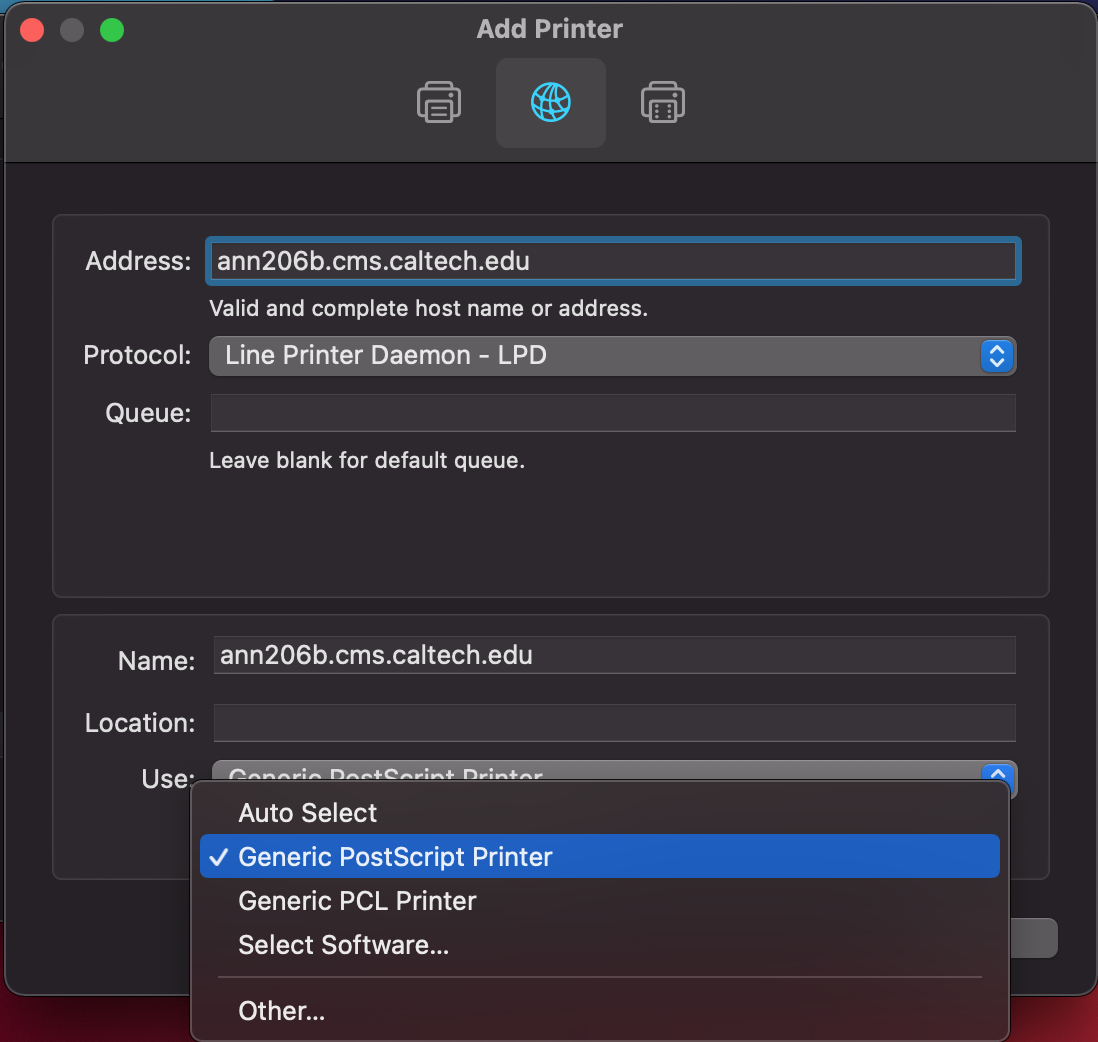 }} **Step 4**: All printers have a duplexer unit, so check that box to enable two-sided printing. {{Figure |caption=Add Printer |align=left |width=50% 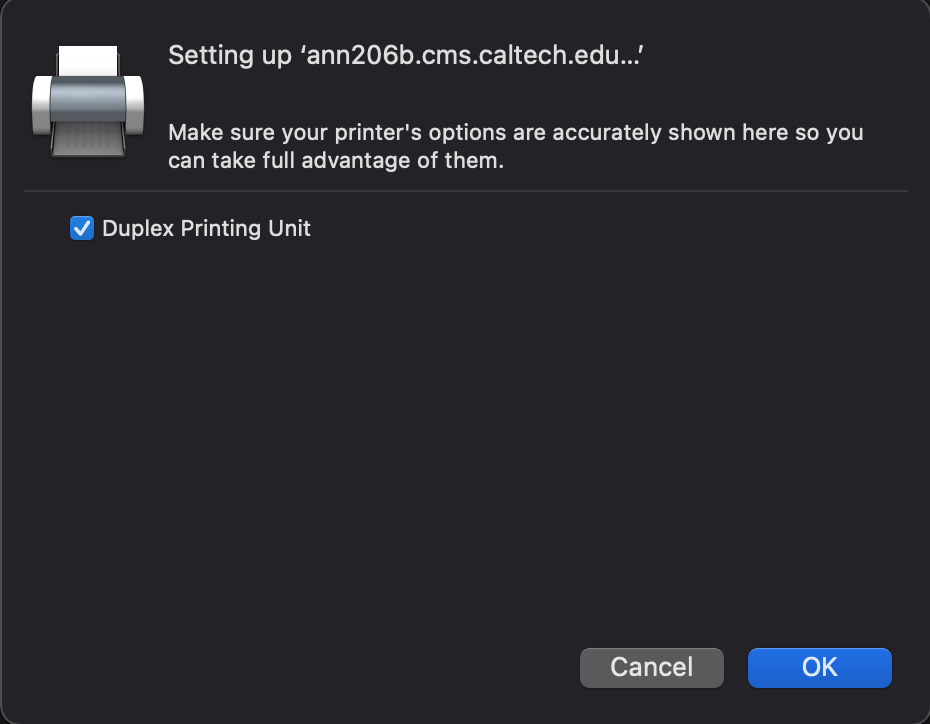 }} **Step 5**: You may see the following error message, as bidirectional communication with the printer might not be possible during setup. You can continue to finish installation. {{Figure |caption=Error message |align=left |width=50% 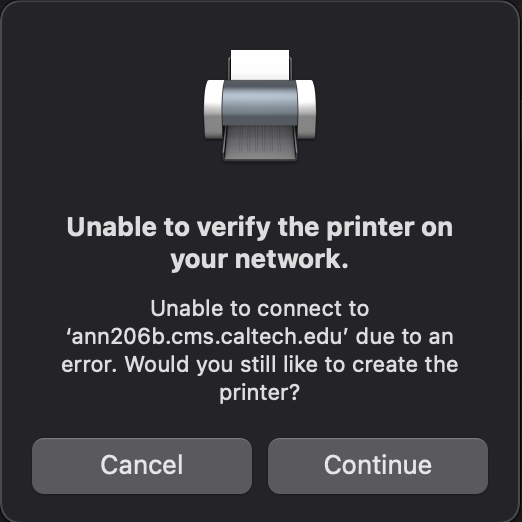 }} When it completes, you should be able to send print jobs to the printer whenever you are connected to: - The campus wired network - The campus wireless network - The VPN #### For Windows 10 Machines These instructions are for Windows 10 Enterprise/Professional installations for 64-bit machines. If you have Windows Home Edition, these instructions should work but they have not been tested. If you have a 32 bit operating system, you'll need to download 32 bit drivers, contact _help@cms.caltech.edu_ for more information. Click on the [64 bit Windows 10 Driver](https://info-4.cms.caltech.edu/Main/Printer%20Configuration/Canon-MF424-Postscript-64.zip) link. When prompted, choose **Open with Windows Explorer**. Drag the folder named *Driver* onto your Desktop Then Open the **Printer Control Pane** Choose **Add a Printer or Scanner** Click on ***The printer I want isn't listed*** When the _Add Printer_ dialogue opens, choose **Add a printer using a TCP/IP address or hostname**, Click **Next**. When the next dialogue window opens, choose: **Device Type:** TCP/IP Device **Hostname or IP address:** ann305.cms.caltech.edu Hit **Next** again It will take a second to set up the TCP/IP port. It may say _Additional Port information required_ If so, choose **Standard** and change **Generic Printing Device** to **Canon Network Printer** Hit **Next** The _Install the printer driver_ window will open. Click on **Have disk** When the **Install from Disk** window opens, choose **Browse** Browse to your Desktop, choose the Driver folder you downloaded up above. Click on **Open** Returning to the **Install from Disk** window, hit **Okay** Returning to the **Install the printer driver** window, you should see _Canon Generic Plus PS3_ As the driver, hit **Next** If the _Which version of the driver_ window opens, choose _Replace the existing driver_ and hit **Next** Finally it will ask you to type a printer name, I recommend Annenberg 3rd Floor Copy Room Printer Hit **Next** again. It will install the printer. Do not share the printer, when asked. Then you should be ready to go, click on **Print a test page** and make sure the test page comes out.