CMS Slack
The CMS Slack space is accessible via the web here,
or via a Slack app interface using the url "https://caltech-cms.slack.com/".
You will need to be invited to the CMS Slack space to use it.
To request an invite, contact the administrative assistant supporting your research group and ask them to send an authorization request to the technical staff.
The current channel space on CMS Slack is:
#adminstaff- reserved for CMS administrative personnel for general discussion#askanadmin- open channel for information requests from anyone on the administrative staff#events- information regarding department events#grads- reserved for CMS graduate students for general discussion#grantmgrs- reserved for Caltech grant managers handling CMS faculty, for general discussion#hpc- open channel for anyone using a compute node in CMS, general questions about Singularity, etc.#instructors- reserved for instructors of CMS classes, for general discussion#moatm- "music on at the moment", share your musical tastes with channel subscribers#nightwatch- closed channel for coordination of after hours issues, staff only#random- general nonsense and blatherings#systems- reserved channel for technical staff#faculty- reserved channel for CMS and affiliated facutly
How Do I Add the CMS Slack Space
If you've lost your Slack configuration on your phone, by accidentally deleting the app, or forgetting the password you used for the CMS instance, or some other factor, you can re-add it following these instructions:
Open Slack on your phone
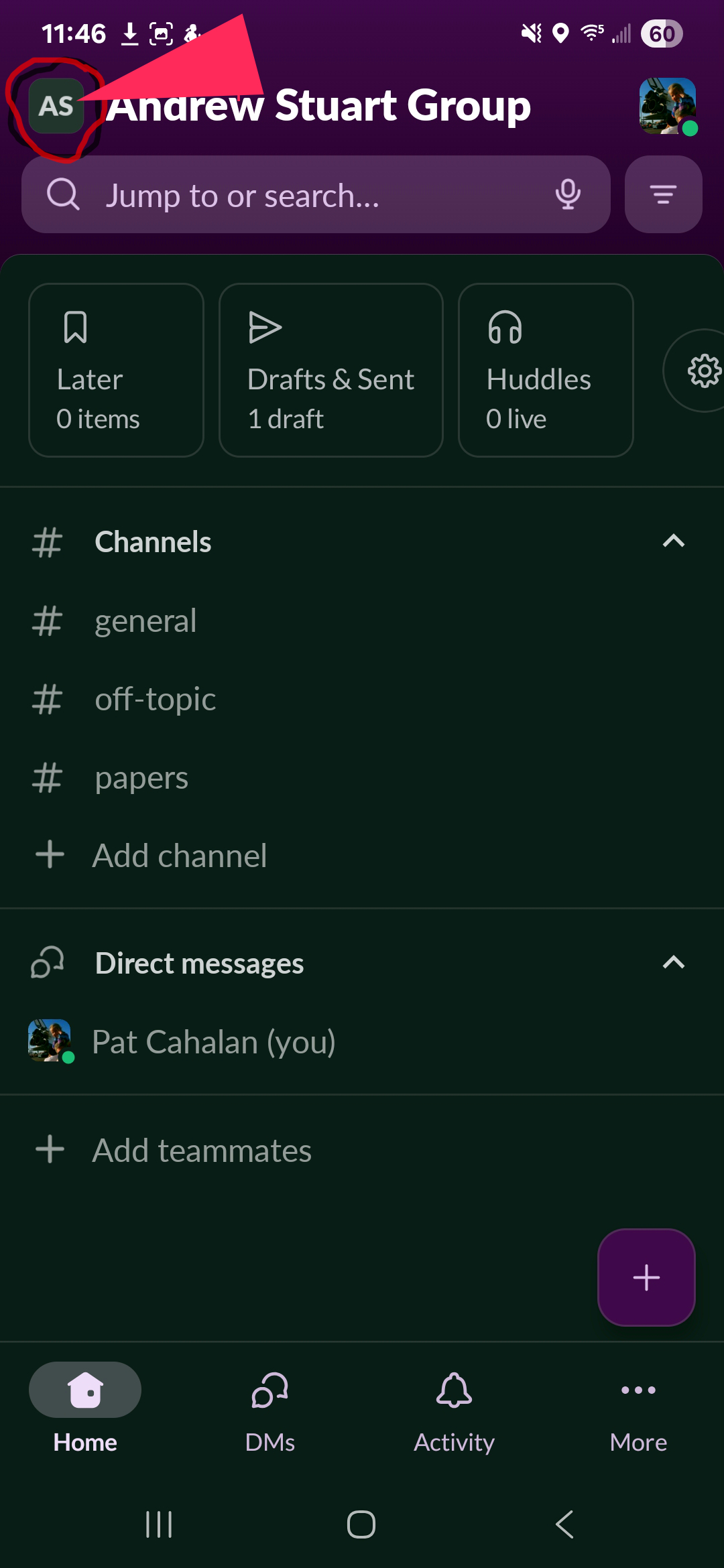
Open the workspace selection link (in the upper left corner, circled in red):
- You should see a list of all of the workspaces that your associated email address is linked to, like this:
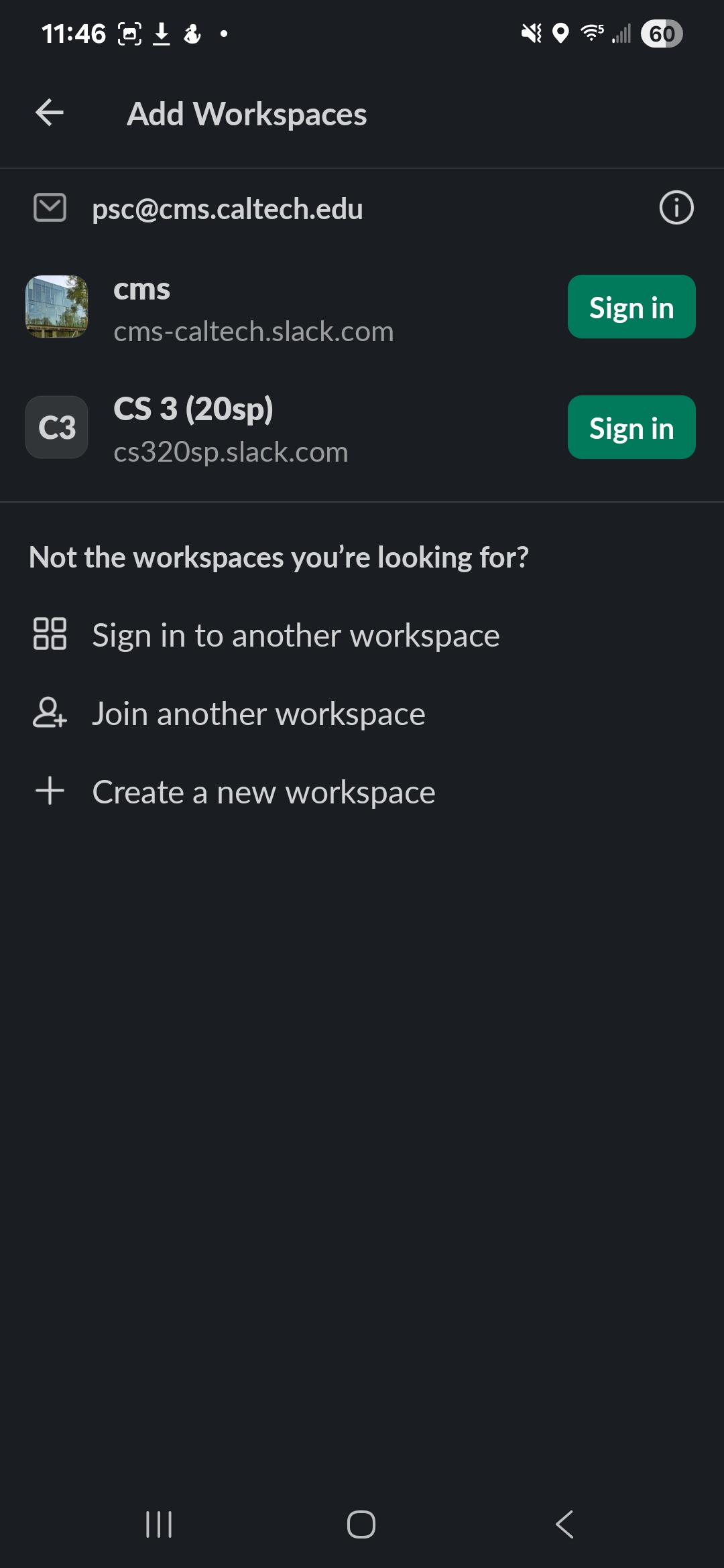
- Click on the "Sign In" button next to the CMS workspace. You will see this page:
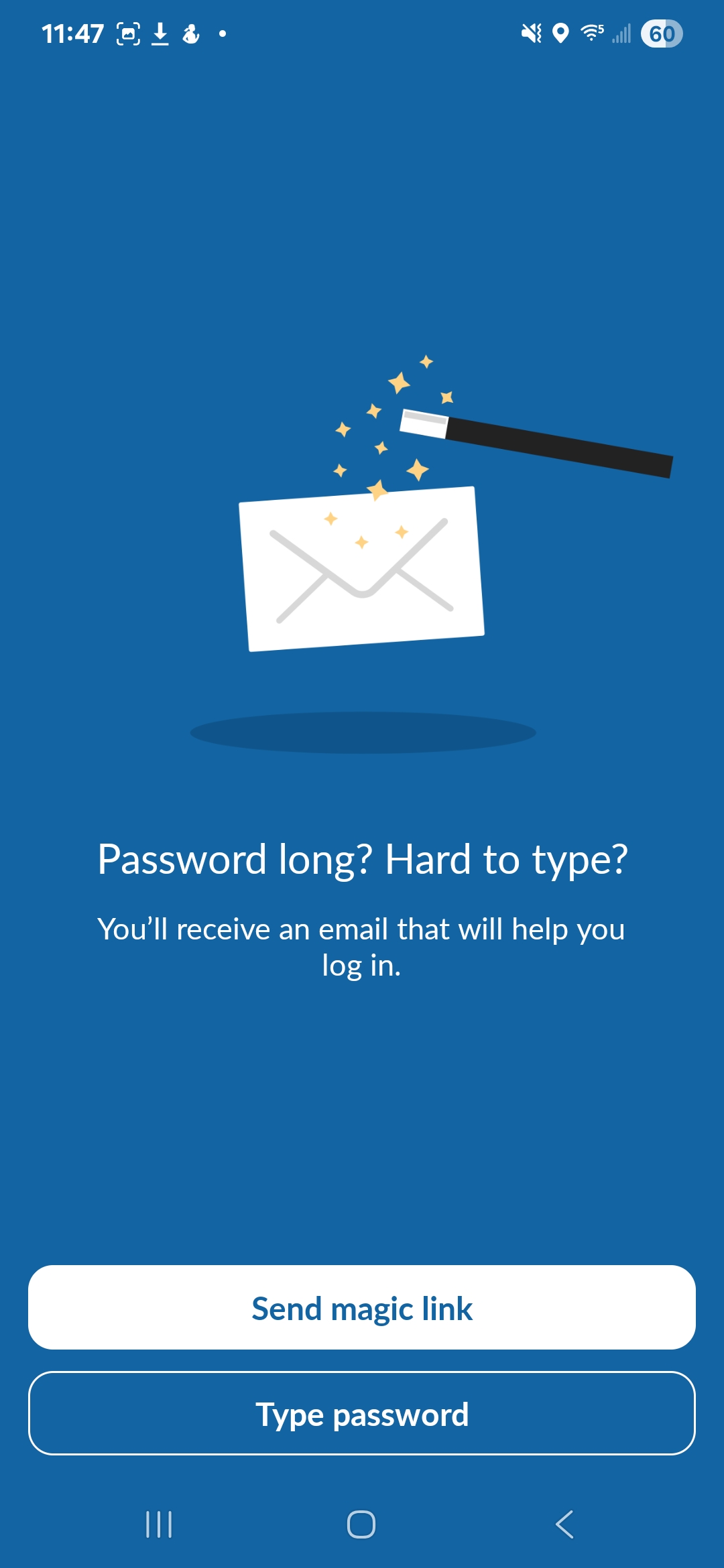
If you remember your password, you can just click on Type password, enter your password and you're good to go.
If you don't...Click on the Send Magic Link button.
You'll see this screen:

- Open your email client, and click on the link in the mail you've just received, and the CMS slack space will be added to your phone client.