Blame
|
1 | # CMS Slack |
||||||
| 2 | ||||||||
|
3 | The CMS Slack space is accessible via the web [here](https://caltech-cms.slack.com), |
||||||
| 4 | or via a Slack app interface using the url "https://caltech-cms.slack.com/". |
|||||||
| 5 | You will need to be invited to the CMS Slack space to use it. |
|||||||
|
6 | |||||||
| 7 | To request an invite, contact the administrative assistant supporting your research group and ask them to send an authorization request to the technical staff. |
|||||||
| 8 | ||||||||
| 9 | The current channel space on CMS Slack is: |
|||||||
|
10 | * `#adminstaff` - reserved for CMS administrative personnel for general discussion |
||||||
| 11 | * `#askanadmin` - open channel for information requests from anyone on the administrative staff |
|||||||
| 12 | * `#events` - information regarding department events |
|||||||
| 13 | * `#grads` - reserved for CMS graduate students for general discussion |
|||||||
| 14 | * `#grantmgrs` - reserved for Caltech grant managers handling CMS faculty, for general discussion |
|||||||
| 15 | * `#hpc` - open channel for anyone using a compute node in CMS, general questions about Singularity, etc. |
|||||||
| 16 | * `#instructors` - reserved for instructors of CMS classes, for general discussion |
|||||||
| 17 | * `#moatm` - "music on at the moment", share your musical tastes with channel subscribers |
|||||||
| 18 | * `#nightwatch` - closed channel for coordination of after hours issues, staff only |
|||||||
| 19 | * `#random` - general nonsense and blatherings |
|||||||
| 20 | * `#systems` - reserved channel for technical staff |
|||||||
| 21 | * `#faculty` - reserved channel for CMS and affiliated facutly |
|||||||
| 22 | ||||||||
| 23 | ## How Do I Add the CMS Slack Space |
|||||||
| 24 | If you've lost your Slack configuration on your phone, by accidentally deleting the app, or forgetting the password you used for the CMS instance, or some other factor, you can re-add it following these instructions: |
|||||||
|
25 | |||||||
| 26 | 1. Open Slack on your phone |
|||||||
| 27 | ||||||||
|
28 | 2. Open the workspace selection link (in the upper left corner, circled in red): |
||||||
| 29 | ||||||||
| 30 | {{Figure |
|||||||
| 31 | |caption=Workspace selection |
|||||||
| 32 | |width=35% |
|||||||
| 33 | |align=left |
|||||||
| 34 | 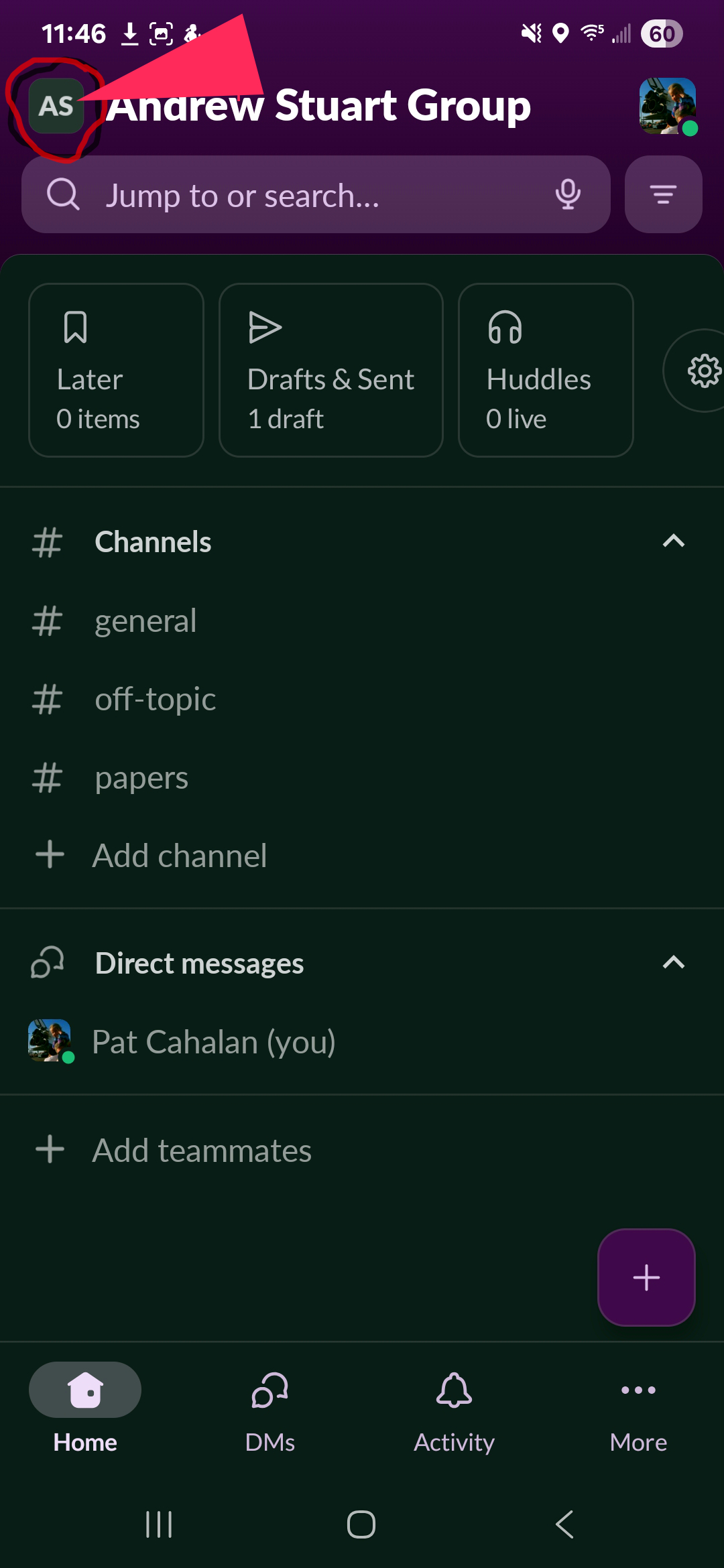 |
|||||||
|
35 | }} |
||||||
|
36 | |||||||
|
37 | 3. You should see a list of all of the workspaces that your associated email address is linked to, like this: |
||||||
| 38 | ||||||||
| 39 | {{Figure |
|||||||
| 40 | |caption=Workspace list |
|||||||
| 41 | |align=left |
|||||||
| 42 | |width=35% |
|||||||
| 43 | 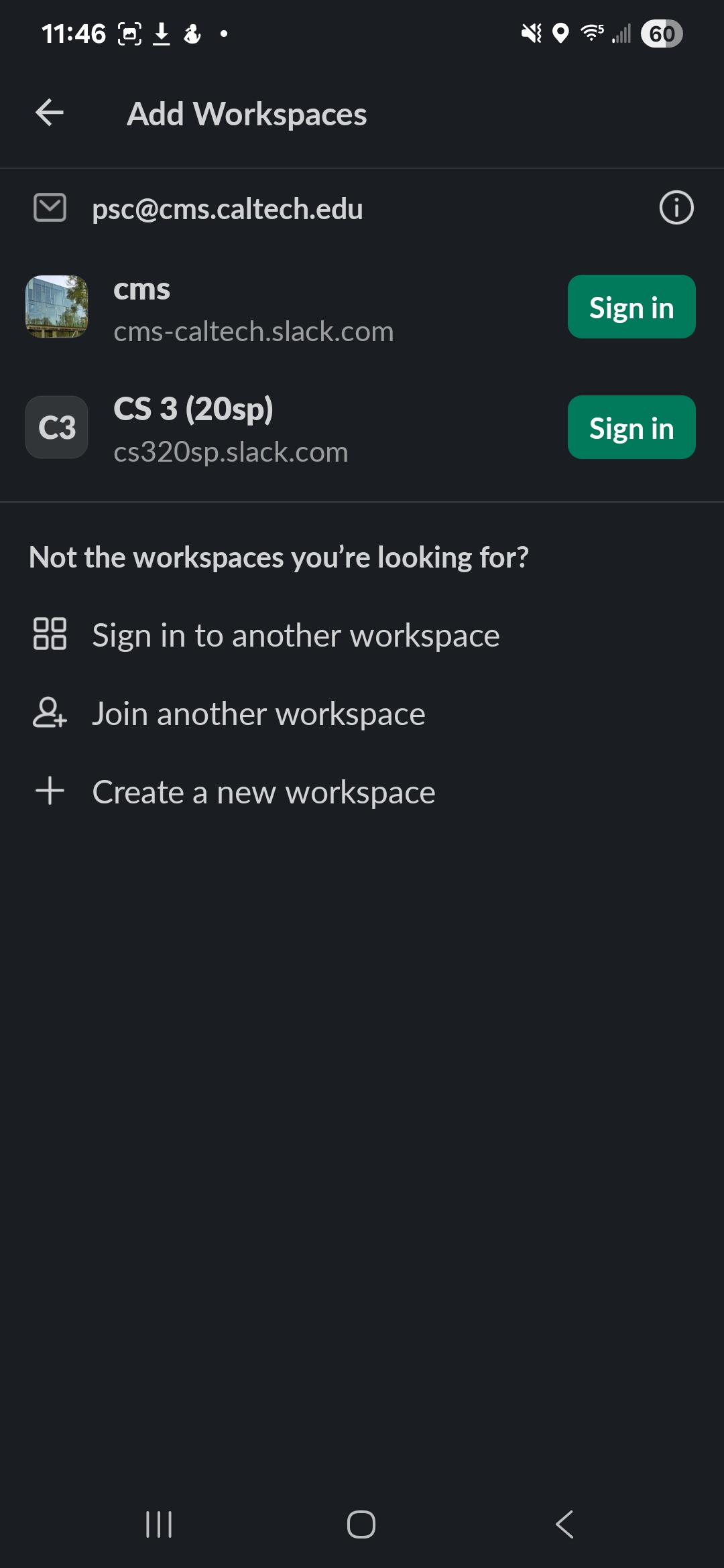 |
|||||||
| 44 | }} |
|||||||
| 45 | ||||||||
| 46 | 4. Click on the "Sign In" button next to the CMS workspace. You will see this page: |
|||||||
| 47 | ||||||||
| 48 | {{Figure |
|||||||
| 49 | |caption=Send magic link |
|||||||
| 50 | |align=left |
|||||||