Blame
|
1 | # Enrolling |
||||||
| 2 | ||||||||
| 3 | ## How To Use Two-Factor Authentication in CMS |
|||||||
| 4 | ### About |
|||||||
| 5 | ||||||||
| 6 | To increase general security and reduce the need to age passwords, CMS has implemented a two-factor authentication (hereafter "2FA") method for interactive login. You do not need to set up 2FA for email or web logins or any other CMS service, only to use an SSH client to gain console access to interactive login servers (login.cms.caltech.edu, group login hosts for compute intensive work, etc) |
|||||||
| 7 | ||||||||
| 8 | ### Process |
|||||||
| 9 | ||||||||
| 10 | Most likely, your Android or iPhone already has Google Authenticator installed. CMS 2FA will work with Google Authenticator, but for the purposes of this documentation we will assume that you don't have it installed. If you are already familiar with Google Authenticator and know it is installed on your phone, you can skip the first part of the instructions. You can also use privacyIDEA Authenticator. |
|||||||
| 11 | ||||||||
| 12 | #### Prepping your Phone |
|||||||
| 13 | ||||||||
| 14 | Download and install Google Authenticator on your cell phone. This is both available via the Google Play store and via the App Store for the iPhone. Simply open the Play Store or the App Store, search for the app, and install it. If you have an objection to Google Authenticator you can also use privacyIDEA Authenticator, but the remainder of this documentation assumes Google Authenticator is the app you are using (instructions are similar for both). |
|||||||
| 15 | ||||||||
| 16 | {{Figure |
|||||||
| 17 | |caption=Google Play Store - Google Authenticator |
|||||||
| 18 | |align=left |
|||||||
| 19 | |width=50% |
|||||||
| 20 | 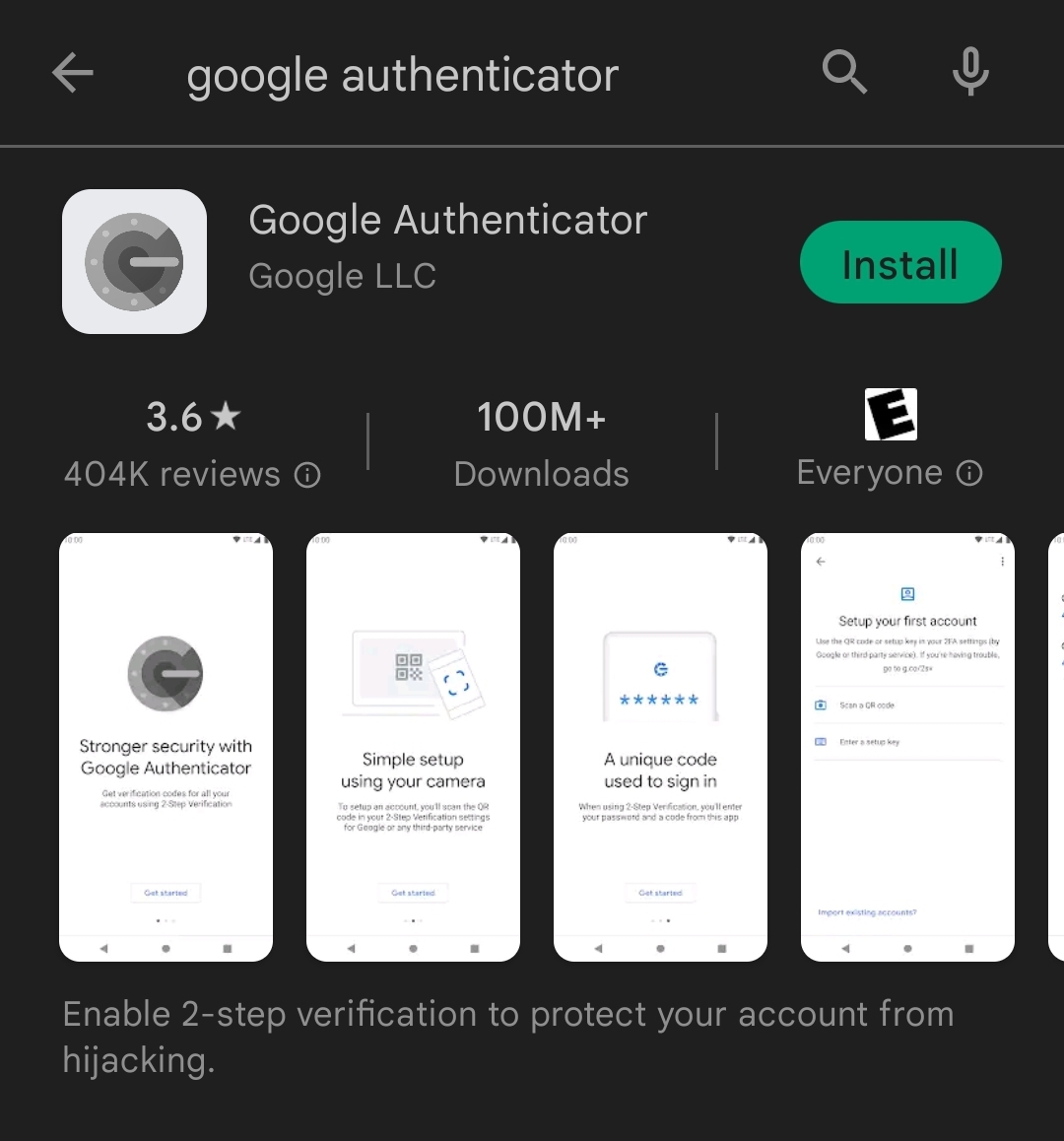 |
|||||||
| 21 | }} |
|||||||
| 22 | ||||||||
| 23 | {{Figure |
|||||||
| 24 | |caption=Google Play Store - PrivacyIDEA Authenticator |
|||||||
| 25 | |align=left |
|||||||
| 26 | |width=50% |
|||||||
| 27 | 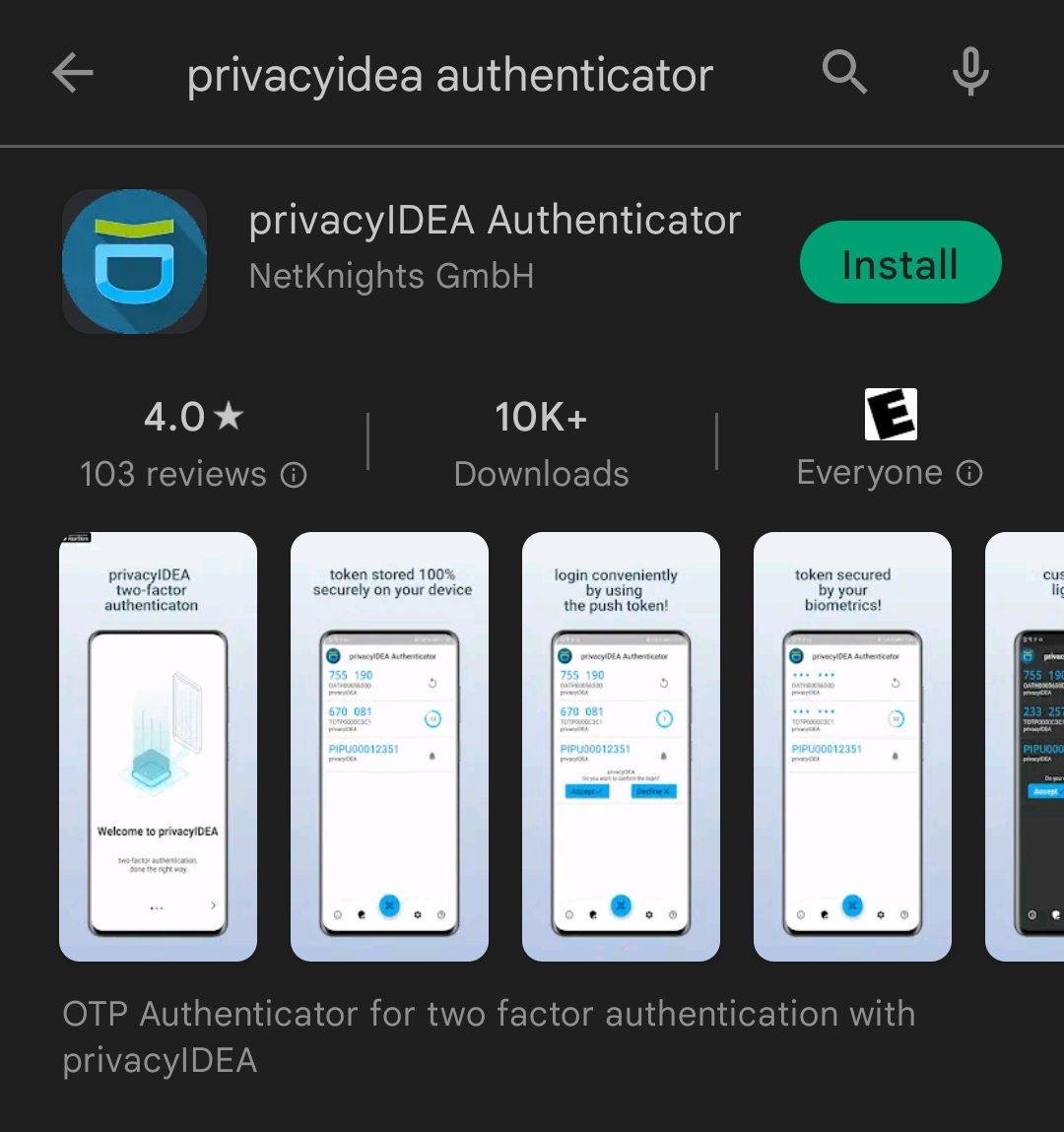 |
|||||||
| 28 | }} |
|||||||
| 29 | ||||||||
| 30 | #### Set Up Your Token |
|||||||
| 31 | ||||||||
| 32 | Log into the [CMS Token Management gateway](https://torii.cms.caltech.edu/), using your CMS credentials. |
|||||||
| 33 | ||||||||
| 34 | {{Figure |
|||||||
| 35 | |caption=Torii Login |
|||||||
| 36 | |align=left |
|||||||
| 37 | |width=65% |
|||||||
| 38 | 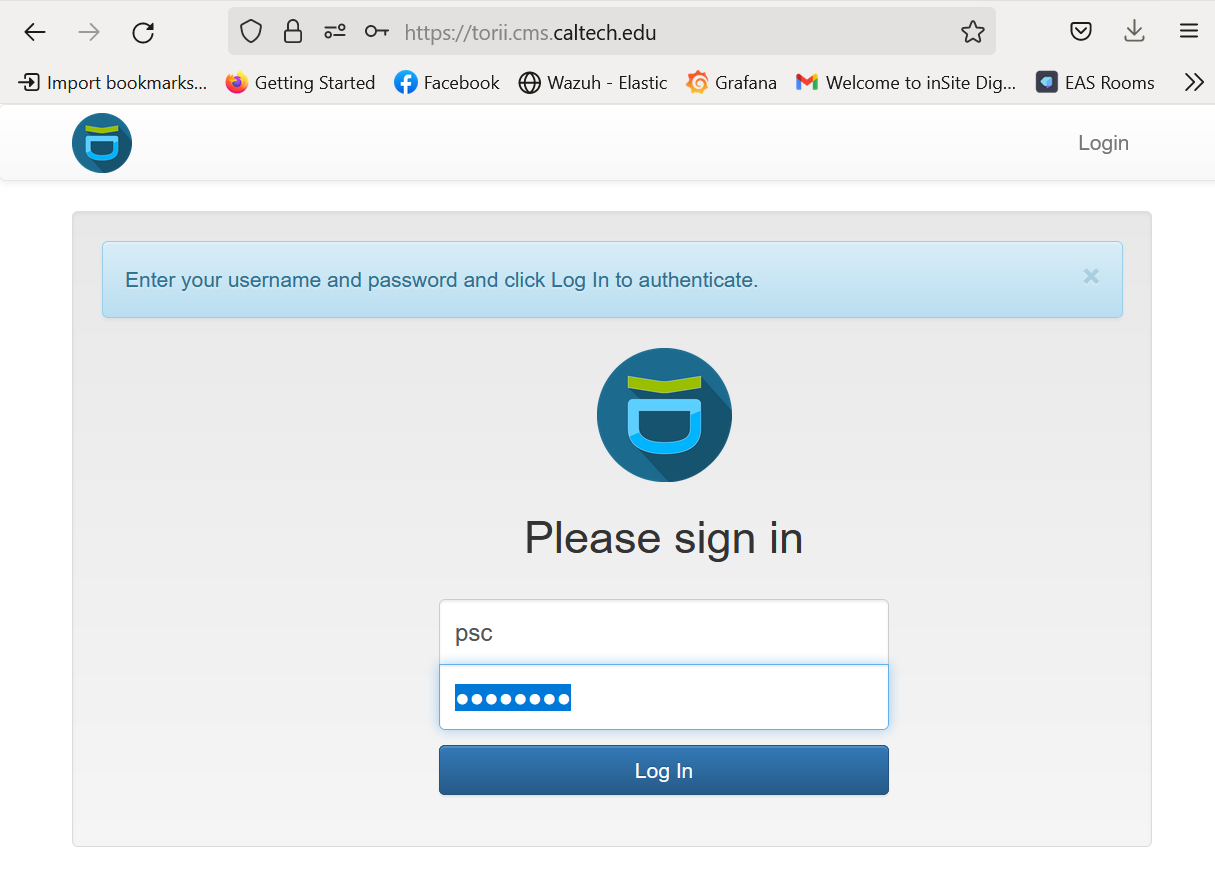 |
|||||||
| 39 | }} |
|||||||
| 40 | ||||||||
| 41 | The first time you log in, you'll see the "Welcome" splash, hit OK |
|||||||
| 42 | ||||||||
| 43 | {{Figure |
|||||||
| 44 | |align=left |
|||||||
| 45 | |width=50% |
|||||||
| 46 | 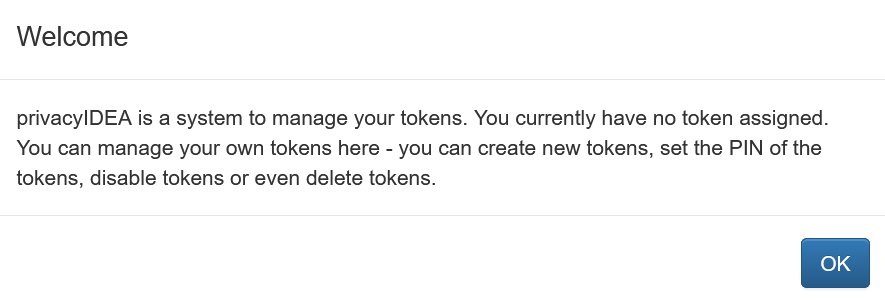 |
|||||||
| 47 | }} |
|||||||
| 48 | ||||||||
| 49 | If you have never enrolled a token before, and this is your first time logging in here, the system will automatically enroll a token for you. |
|||||||
| 50 | ||||||||
| 51 | {{Figure |
|||||||
| 52 | |caption=Enroll Token |
|||||||
| 53 | |align=left |
|||||||
| 54 | |width=75% |
|||||||
| 55 | 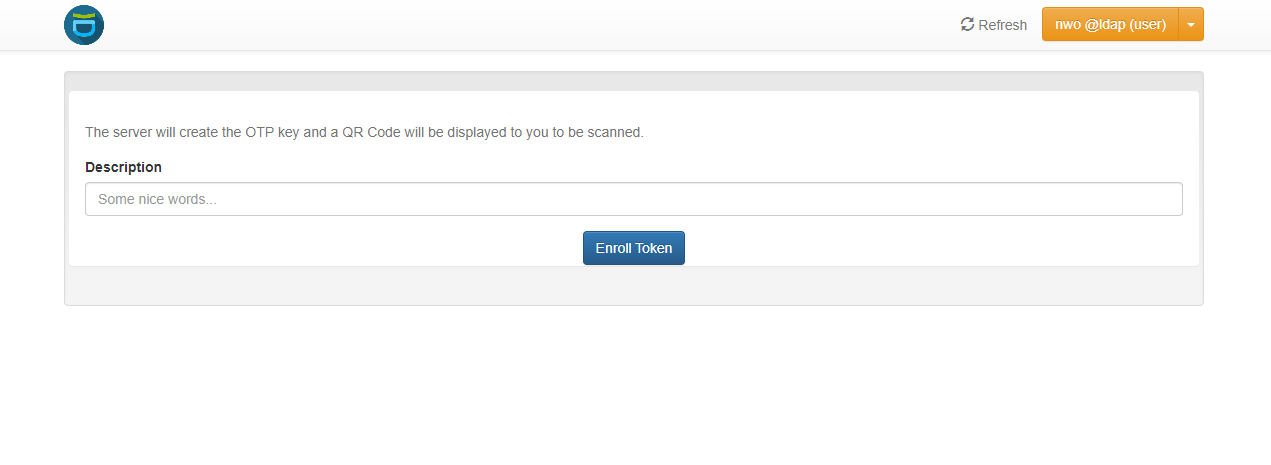 |
|||||||
| 56 | }} |
|||||||
| 57 | ||||||||
| 58 | Click **Enroll Token** |
|||||||
| 59 | ||||||||
| 60 | {{Figure |
|||||||
| 61 | |caption=QR Code |
|||||||
| 62 | |align=left |
|||||||
| 63 | |width=50% |
|||||||
| 64 | 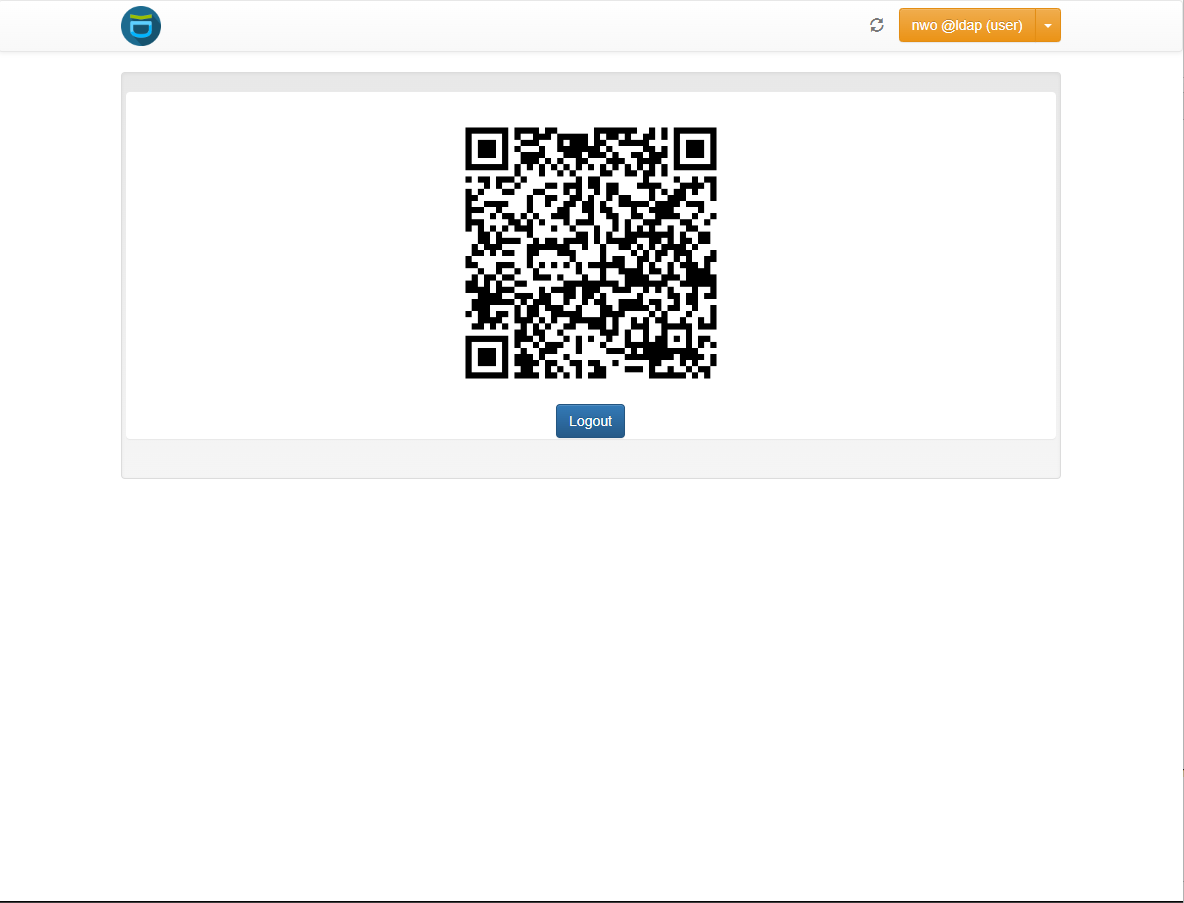 |
|||||||
| 65 | }} |
|||||||
| 66 | ||||||||
| 67 | Scan this QR code with your phone, either with your (Google) Authenticator app, or the phone's camera, and it should proceed to add this OTP token to your phone'a authenticator system. |
|||||||
| 68 | ||||||||
| 69 | This will create your token and logout.\ |
|||||||
| 70 | Click **Logout** and you'll be logged out. |
|||||||
| 71 | ||||||||
| 72 | You may login again, but you have already accomplished everything needed to use your token to SSH remotely! |
|||||||